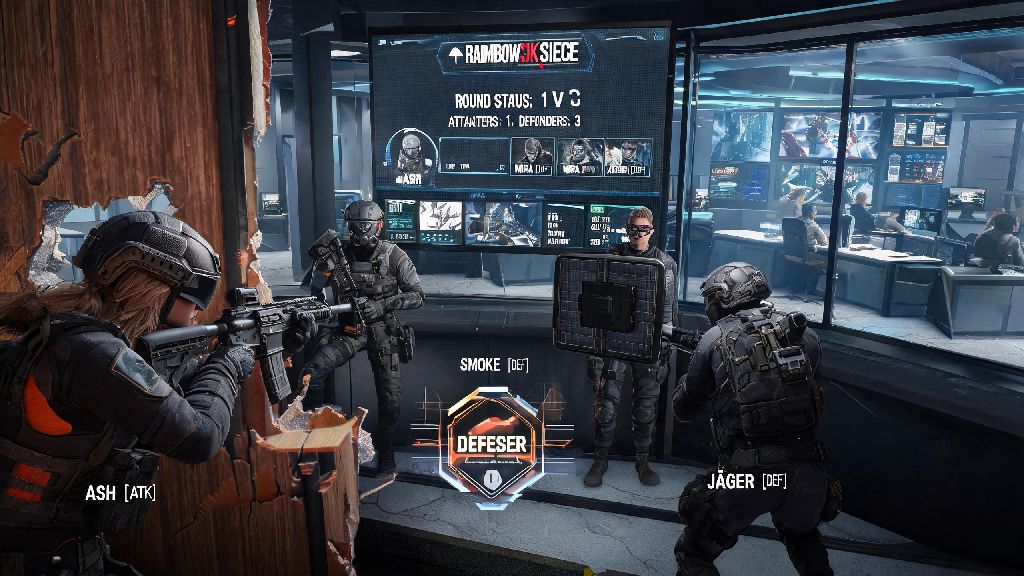
If you’re thinking of picking up Rainbow Six Siege for the first time, or switching over from console to get a competitive edge, the first question you likely have is can you play Rainbow Six Siege on PC. It’s a fair ask, since some tactical shooters are locked to specific platforms or have limited support for PC users. The short answer is yes, and PC is actually one of the most popular platforms for the game, especially among competitive players who prioritize performance and customization. This guide will walk you through everything you need to know to get set up, run the game smoothly, and fix any common issues that pop up.
Can You Play Rainbow Six Siege on PC? Platform Availability Basics
Rainbow Six Siege has been fully supported on PC since its original launch in 2015, and is available to purchase and download through three major platforms: Ubisoft Connect, Steam, and the Epic Games Store. All three versions work exactly the same, and you can link your account across platforms to carry over your operator unlocks, skins, and rank progress, no matter where you bought the game. Crossplay is enabled by default for PC players, meaning you can match up with users on PS5 and Xbox Series X/S, though you can turn this off in settings if you only want to play against other PC users.
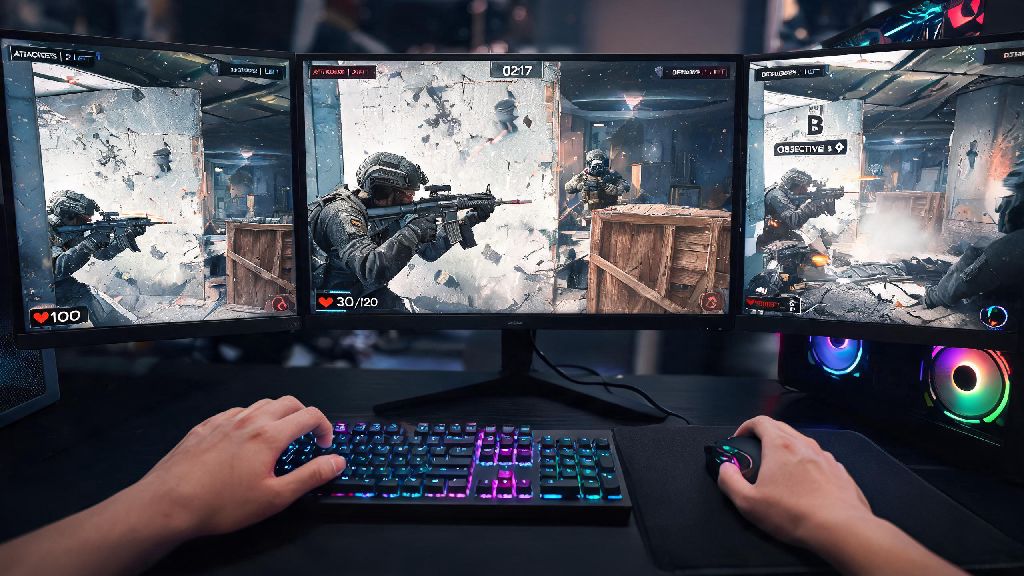
One big perk of the PC version is that you get access to features you won’t find on console, like fully customizable keybinds, uncapped framerates, and support for ultra-wide monitors. You can also use approved cosmetic mods to tweak the look of your UI or operator skins, as long as they don’t give you a gameplay advantage. I’ve run the game on a 5-year-old mid-tier laptop while traveling for tournaments, so it’s far more accessible than a lot of newer competitive shooters on the market.
Minimum and Recommended PC Specs for Smooth R6 Siege Gameplay
You don’t need a $2000 gaming rig to run Siege well. The game is surprisingly well optimized, even for older hardware, so most builds from the last 7 years can hit at least 30fps on low settings, and budget builds from the last 3 years can hit 60fps or higher on medium to high settings. The only non-negotiable upgrade I recommend for all players, no matter your build, is storing the game on an SSD instead of a hard drive. I switched from an HDD to an SSD last year, and my load times dropped from 2 minutes per match to 15 seconds, which saves me hours of waiting over the course of a month.
If you’re only planning to play casual matches with friends, the recommended specs are more than enough to have a great experience. Competitive players who want to hit the highest ranks should aim for the competitive specs, since a higher framerate lowers input lag and makes it easier to track fast-moving targets. That said, I know multiple Diamond-ranked players who still play on the recommended specs, so don’t feel like you need to upgrade your entire rig just to rank up.
Top Performance Tweaks to Improve Your R6 Siege PC Experience
Even if you have a lower-end build, there are a handful of simple tweaks you can make to boost your framerate without making the game look unplayable. First, head to the in-game graphics settings and turn off any unnecessary post-processing effects like motion blur, depth of field, and lens flare. These effects only add visual clutter and eat up performance, so most competitive players keep them turned off entirely.
Turn off VSync unless you have extreme screen tearing that ruins your gameplay. VSync locks your framerate to your monitor’s refresh rate, but it adds noticeable input lag that can make it harder to react to peeking enemies. If you do have screen tearing issues, use NVIDIA G-Sync or AMD FreeSync instead if your monitor supports it, as those don’t add input lag. Disabling unused background apps is another easy win, as browser tabs, Discord, and streaming software can eat up 20% or more of your CPU and RAM when left running in the background.
Adjust your field of view (FOV) to a setting that feels comfortable for you. Most players stick between 80 and 90, as higher FOV lets you see more of your surroundings but makes distant targets appear smaller, while lower FOV zooms in your view but limits your peripheral vision. You should also take 10 minutes to customize your keybinds to fit your playstyle. I have my left and right lean binds set to my mouse side buttons, which cut my reaction time by almost 20% when I’m holding angles, since I don’t have to reach across my keyboard to press them.
Common PC R6 Siege Launch Issues and Easy Fixes
Most of the time, Siege will launch and run perfectly right after installation, but there are a handful of common errors that pop up for PC users, especially after a big patch. The good news is that almost all of these issues have simple fixes that take less than 5 minutes to implement, so you don’t have to waste hours troubleshooting before you can play.
The most common error people run into is the Easy Anti-Cheat (EAC) initialization failure, which stops the game from launching entirely. Run both Ubisoft Connect and the game as administrator to fix this 90% of the time, as the error usually pops up because EAC doesn’t have permission to access your system files. If that doesn’t work, verify your game files through your store client, which will replace any corrupted or missing files that are causing the issue. Update your graphics drivers if you’re experiencing random crashes or stuttering mid-game, as outdated drivers often have compatibility issues with new Siege patches.
If you’re getting long load times even with the game on an SSD, make sure your storage drive has at least 10GB of free space left, as Siege needs extra room to run temporary files during matches. If you can’t connect to online matches, check your Windows Firewall settings, as it often blocks Siege’s network connection by default after updates. I ran into the EAC error last month when I reinstalled the game on a new drive, and running as administrator fixed it immediately, no extra steps needed.
So to wrap it up, can you play Rainbow Six Siege on PC? Absolutely, and it’s easily the most flexible and customizable way to experience the game, whether you’re a casual player who just wants to mess around with friends or a competitive player chasing Champion rank. You don’t need a high-end build to have fun, and the small tweaks we covered will help you get the most out of whatever hardware you have. If you’re switching over from console, give yourself a week or two to get used to mouse and keyboard controls, and you’ll likely notice your aim and reaction time improve far faster than they ever did on a controller.