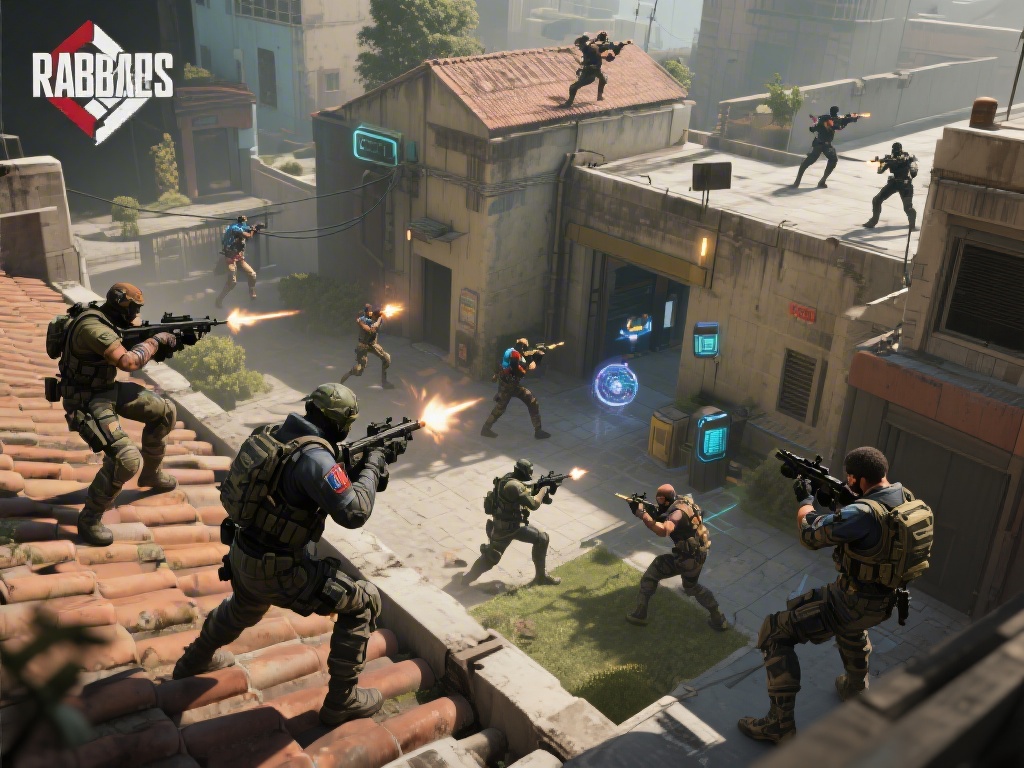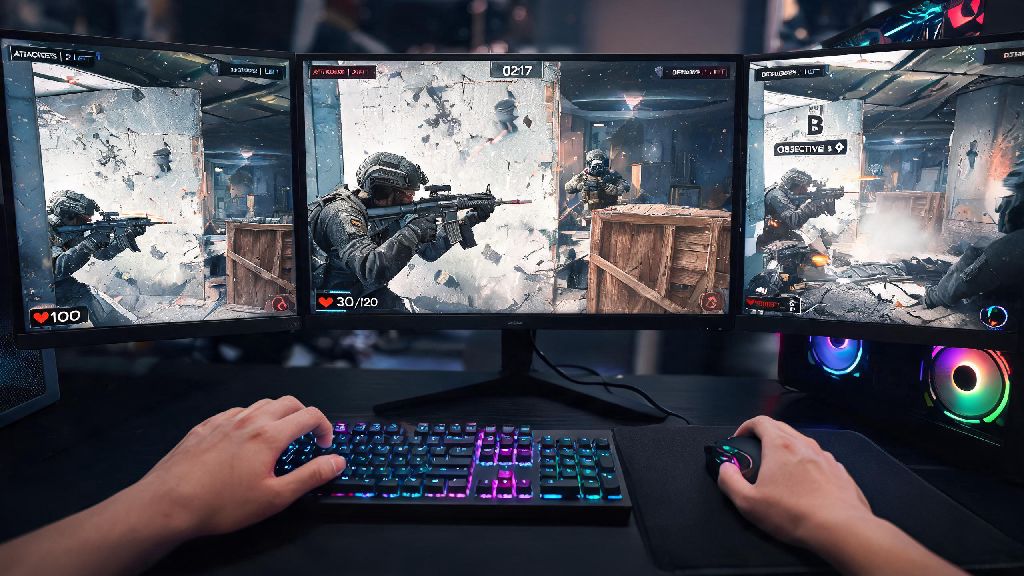
If you’ve been scrolling through tactical shooter clips and wondering can you play Rainbow Six Siege on PC, you’re far from alone. I’ve been playing R6 on both console and PC for over 6 years, and I can say the PC version offers some of the most satisfying, competitive gameplay you’ll get from the franchise. But there’s a lot more to it than just hitting download on Steam or Ubisoft Connect. This guide breaks down everything you need to know to get set up, avoid common pitfalls, and get the most out of your PC Siege experience.
Can You Play Rainbow Six Siege on PC? Minimum and Recommended Specs
The short answer is yes, as long as your PC meets or beats the official system requirements from Ubisoft. The game is surprisingly well optimized, so it runs even on older, budget-friendly builds that are 7+ years old in many cases. That said, you’ll want to pay close attention to the difference between minimum and recommended specs if you plan on playing competitive ranked matches. Minimum specs are only designed to get the game to launch, not to deliver playable competitive performance.
For reference, the official minimum specs for 720p 30fps gameplay are an Intel Core i3-560 or AMD Phenom II X4 945 processor, 6GB of RAM, an Nvidia GTX 460 or AMD Radeon HD 5770 graphics card, and 70GB of available storage. If you want 1080p 60fps on medium to high settings, you’ll need at least an Intel Core i5-2500K or AMD FX-8120, 8GB of RAM, and an Nvidia GTX 670 or AMD Radeon HD 7970. For competitive 144fps gameplay at 1080p or 1440p, aim for an Intel Core i5-10400F or AMD Ryzen 5 3600, 16GB of RAM, and an Nvidia RTX 3060 or AMD RX 6600.
If you’re on the fence about whether your build will run it, you can download a free trial version from Ubisoft Connect first to test performance before you buy. I’ve seen the game run at a steady 60fps on old laptops with integrated graphics, as long as all the visual settings are turned all the way down, so don’t count your PC out if it’s a bit older.
Where to Download and Set Up R6 Siege on PC
Siege is available for purchase and download from three major PC storefronts: Ubisoft Connect, Steam, and the Epic Games Store. No matter which store you buy from, you’ll need a free Ubisoft account to play, since all versions connect to Ubisoft’s central servers. All PC versions of Siege connect to the same crossplay pool, so you won’t be locked out of matches no matter which store you buy from.
You’ll also need to pick which edition of the game to buy. The Starter Edition is the cheapest, but it has a drastically slower operator unlock rate, so you’ll spend dozens of extra hours grinding to unlock playable characters if you go this route. I made the mistake of buying the Starter Edition when I first got Siege on PC back in 2018, and it took me 3 times longer to unlock my favorite operators than it did for my friend who bought the Standard Edition. Don’t make that same call if you plan on playing the game regularly.
Standard Edition is the best value for most new players, as it includes all base operators and lets you unlock post-launch operators at the normal rate with in-game currency. The Deluxe and Ultimate editions include extra operators, skins, and battle pass content, but they’re only worth the extra cost if you know you’re going to play the game long term. Cross-progression is fully supported now, too, so all your skins, rank progress, and unlocked operators from console will carry over to your PC account if you link the same Ubisoft account.
Key PC-Specific Settings to Optimize Your Gameplay
One of the biggest benefits of playing Siege on PC is the level of control you have over your settings to prioritize performance or visual quality. If you’re playing competitively, your top priority should be high, consistent FPS and clear visibility of enemy operators, not pretty graphics. The following settings will give you the biggest competitive edge with minimal effort:
Mouse settings are just as important as in-game visual settings. Disable mouse acceleration in both Windows settings and Siege’s in-game menu to get consistent, predictable aim every time you move your mouse. Most competitive players use a sensitivity between 400 and 800 DPI, with an in-game sensitivity of 7 to 10, but you should test different settings to find what feels most comfortable for you. If you’re switching from console, you can use free online sensitivity converters to match your old controller sensitivity exactly, so you don’t have to re-learn aim from scratch.
Don’t sleep on audio settings, either. Turn off in-game music completely, and turn up dialogue and footstep volume as high as possible. Siege is 70% audio, and you’ll be able to hear enemies planting breaches, moving through soft walls, or reloading their weapons before you ever see them if your audio is set up correctly. If you’re new to PC gaming and wondering if you can play Rainbow Six Siege on PC with a controller first while you learn mouse and keyboard, that’s totally possible. The game supports all major controller brands, and you can switch between input methods any time you want, though you will be at a small aim disadvantage against mouse and keyboard players in higher rank brackets.
Common PC Siege Issues and Quick Fixes
Most players don’t run into any issues when setting up Siege on PC, but there are a few common problems that pop up for new players, and most have simple fixes. The most common issue is Easy Anti-Cheat (EAC) errors that stop the game from launching. 80% of the time, verifying your game files through your storefront will fix this, as corrupted game files are usually the cause. If that doesn’t work, make sure EAC is installed correctly and added as an exception to your antivirus software.
Random frame drops during matches are another common complaint, especially on older builds. The first thing to check is background apps: close Chrome, Discord, and any streaming software before launching the game if you’re tight on RAM. You can also turn on Windows Game Mode to prioritize Siege’s system resources over background processes, which can boost FPS by 10 to 15% on lower-end builds. If you run into constant lag even with fast internet, make sure you have Siege added as an exception to your firewall and antivirus software, as security tools often slow down or block game traffic by mistake.
If you don’t want to play against console players, you can turn off crossplay in the in-game settings to only match with other PC players. This is a good call if you want to avoid the small pool of controller players who use aim assist, though most high-rank players keep crossplay on to cut down on queue times. If you run into a bug that you can’t fix, you can submit a ticket to Ubisoft support, or check the official Siege subreddit for user-shared fixes for new bugs that pop up after patch updates.
At the end of the day, the answer to can you play Rainbow Six Siege on PC is a resounding yes, and it’s easily my favorite way to play the game. You get more control over your settings, better performance, and access to the largest pool of competitive players in the community. Take the time to test your settings before jumping into ranked matches, and don’t be discouraged if you take a few weeks to get used to mouse and keyboard controls if you’re switching from console. Before you know it, you’ll be clutching rounds and climbing the ranks faster than you ever did on a controller.