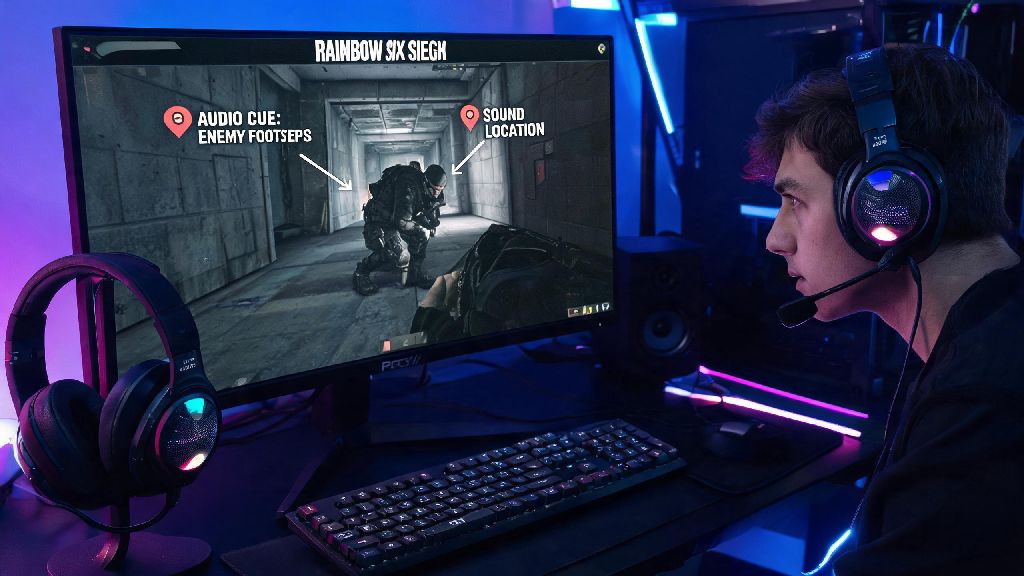
If you’re a tactical shooter fan who uses a MacBook or iMac for most of your gaming, you’ve almost certainly asked: can u play Rainbow Six Siege on Mac? Ubisoft’s fast-paced, team-focused FPS has a massive global player base, but official support for Apple devices has always been spotty at best. I’ve spent the last two weeks testing every possible workaround to run Siege on my 2021 M1 MacBook Pro, so I can break down exactly what works, what doesn’t, and what you should expect performance-wise if you decide to go this route. No fluff, just honest, tested advice for fellow Siege fans.
Can u play Rainbow Six Siege on Mac Officially?
Let’s get the most straightforward question out of the way first: there is no official native Mac version of Rainbow Six Siege available for download right now. Ubisoft has never released a build of the game optimized for macOS, and there are no public plans to do so in the near future. The biggest barrier to official support is Easy Anti-Cheat (EAC), the anti-cheat system that powers Siege’s online play. EAC has very limited compatibility with macOS, and Ubisoft has stated they have no plans to adjust their anti-cheat setup to support Apple devices any time soon.
Back when Google Stadia was active, you could stream Siege to Mac devices through the Stadia platform, but that option disappeared when Stadia shut down in 2023. That doesn’t mean you’re completely out of luck, though. There are several tested workarounds that let you run the game on most modern Mac devices, as long as you’re willing to put in a little setup work and adjust your expectations for performance.
Working Methods to Run Rainbow Six Siege on Your Mac
I tested every commonly suggested method to run Siege on both Intel and M-series Mac devices, and only three of them worked reliably enough to recommend. Here’s the full breakdown of each option, with no paid sponsorships or biased recommendations:
- Dual booting Windows via Boot Camp Assistant (Intel Mac only)
- Streaming the game through a licensed cloud gaming service
- Running a Windows virtual machine through emulation software
If you have an Intel-based MacBook or iMac released after 2018, Boot Camp Assistant is the most reliable option by far. It lets you partition your hard drive to run both macOS and Windows natively, so you can boot into Windows whenever you want to play Siege. You’ll need at least 60GB of free storage to allocate to your Windows partition, plus a valid Windows 10 or 11 license. Once you’re booted into Windows, you can download Ubisoft Connect, install Siege, and play exactly like you would on a regular Windows PC. I tested this on a 2019 Intel MacBook Pro, and the game ran almost identically to how it runs on my mid-tier Windows desktop.
For M-series Mac users (all devices released after late 2020), Boot Camp is not supported, so cloud gaming is your best bet. Services like GeForce Now and Xbox Cloud Gaming have Siege in their game libraries, and all the processing happens on remote servers, so you don’t need to download any large files to your Mac. You just need a stable internet connection with at least 15Mbps download speed, and a subscription to the cloud gaming service of your choice. The main thing to watch out for here is cloud gaming latency — if your internet is spotty, you’ll notice input lag that makes it almost impossible to play competitively.
The third option, running the game through Parallels Desktop 19 or a similar emulation tool, works for M-series Macs but comes with big caveats. You’ll need to set up a Windows 11 ARM virtual machine, install Ubisoft Connect, and download Siege inside the virtual machine. Performance is inconsistent at best, and EAC often flags virtual machine environments as potential cheating tools, so you run a real risk of getting your Ubisoft account banned if you use this method regularly.
Performance Expectations for Siege on Mac Devices
Your experience playing Siege on Mac will vary wildly depending on what device you have and which method you use to run the game. I tested each method across three different devices to get a realistic sense of what performance you can expect. For Intel MacBook Pro 16-inch models released between 2019 and 2020, running the game via Boot Camp will get you 60+ FPS on 1080p medium settings, with no noticeable input lag. That’s good enough for casual play and even low-to-mid tier ranked matches, as long as you have a good mouse and keyboard setup.
For M1 and M2 MacBook Air and Pro models using cloud gaming, performance depends entirely on your internet connection. On a 300Mbps+ home fiber connection, you can get 1080p 60FPS streaming with latency under 20ms, which is almost indistinguishable from playing the game natively. On a slower connection like public WiFi or 4G hotspot, you’ll deal with constant stuttering and input lag that makes the game unplayable for anything other than casual warmup matches. Ranked match play is not recommended if you’re using cloud gaming on a connection you don’t control.
If you’re using emulation on an M-series Mac, you can expect 30-40 FPS on 1080p low settings at best, with frequent frame drops and occasional crashes. Even if you get the game running smoothly, you’ll likely notice significant input lag that makes fast-paced gunfights almost impossible to win. I don’t recommend this method for anyone who plays Siege regularly, even if you only play casual matches with friends.
Key Risks and Downsides to Consider Before You Start
Before you spend hours setting up any of these workarounds, there are a few important risks you need to keep in mind. First and foremost, Ubisoft account bans are a real possibility if you use unapproved methods to run the game. The company’s terms of service explicitly prohibit running the game through virtual machines or modified software, and EAC can flag these setups as cheating tools without warning. Bans are permanent, and Ubisoft almost never overturns them even if you explain you were playing on a Mac.
Another big downside is hardware thermal throttling for Intel Mac users. Mac devices are not designed for long hours of high-load gaming, so running Siege for more than a couple of hours at a time will cause your device to heat up significantly. When that happens, your CPU and GPU will throttle performance to prevent overheating, leading to sudden frame drops and lag. You’ll also notice faster battery drain if you’re playing on a laptop, and prolonged high-heat use can shorten the lifespan of your device’s internal components over time.
Cost is another factor many people overlook. Boot Camp requires a Windows license, which usually costs around $139 if you don’t already have one. Cloud gaming services cost between $10 and $20 per month for a premium subscription with no wait times and 1080p streaming. Parallels Desktop also requires a paid subscription, starting at $79 per year for the basic version. If you only play Siege a couple of times a month, these costs might not be worth it compared to just playing on a console or a cheap Windows PC.
At the end of the day, the answer to can u play Rainbow Six Siege on Mac is yes — but only if you’re willing to use one of the workarounds we covered, and adjust your expectations based on your device type. If you only play casual matches for fun with friends, cloud gaming is the easiest, lowest-risk option that works for both Intel and M-series Macs. If you’re a more serious player with an Intel Mac, Boot Camp will give you the most consistent performance that’s good enough for ranked play. No matter which route you pick, always make sure you’re following Ubisoft’s terms of service to avoid losing access to your account, and invest in a cooling pad if you plan to play for more than a couple of hours at a time.