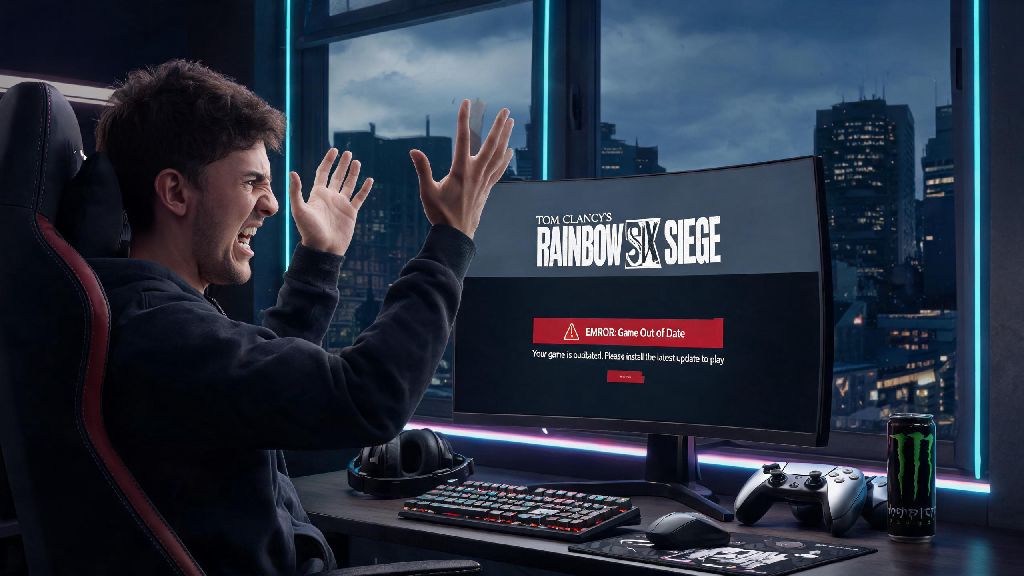
You’re 10 minutes away from queuing for ranked with your squad, you’ve already warmed up your aim in a quick aim trainer, and you load up your launcher only to get hit with a “game out of date” error when you try to launch Siege. Nothing kills momentum faster than waiting for an unexpected update when all you want to do is play. If you’ve ever found yourself stuck in this spot, knowing how to update Rainbow Six Siege on PC properly will save you hours of frustration and missed matches. This guide covers every step for all major launchers, fixes for the most common errors, and pre and post-update tips to keep your progress and settings intact.
How to Update Rainbow Six Siege on PC for Every Major Launcher
Most launchers enable auto-updates by default, but if you’ve turned that off to save data or avoid unexpected downloads during peak hours, you’ll need to trigger the update manually. The steps vary slightly depending on which platform you own the game on, so we’ve broken them down for each major launcher below. If you’re still unsure how to update Rainbow Six Siege on PC for your specific setup, these tailored steps will get you through the process in minutes.
For Steam users: Open your Steam library, find Rainbow Six Siege in your list of games, right click the title, select “Properties” from the dropdown menu, then navigate to the “Updates” tab. You’ll see an option to “Check for updates” — click that, and Steam will automatically start downloading any available patch files. If you want to avoid this hassle in the future, you can set updates to download automatically in this same tab, even when Steam is running in the background. Just keep in mind major season updates can be 20GB or larger, so make sure you have enough space if you turn auto-updates on.
For Ubisoft Connect users: Open the Ubisoft Connect app, navigate to the “Games” tab, and find Rainbow Six Siege in your installed games list. Hover over the game tile, click the three small dots in the bottom right corner, and select “Check for updates” from the menu. The launcher will scan your install files and download any missing patches right away. If you have multiple Ubisoft accounts, make sure you’re logged into the one you used to purchase Siege, otherwise you won’t see available updates for the game.
For Epic Games Store users: Open your Epic Games library, click the three dots on the Rainbow Six Siege game tile, select “Manage” from the menu, then click the “Update” button if it appears. If no update shows up, try clicking the “Verify” button first to scan your game files, which will force the launcher to detect any missing or outdated files. Epic often rolls out updates in waves, so if you don’t see an update right after it’s announced, wait an hour or two and check back again.
Common Update Errors and How to Fix Them Fast
Even if you follow all the steps correctly, you might run into errors that stop your update in its tracks. Most issues that pop up when you're learning how to update Rainbow Six Siege on PC are easy to fix with basic troubleshooting, no technical expertise required. I’ve run into almost every possible update error over the 6 years I’ve been playing Siege, and these fixes work for 95% of cases I’ve encountered.
If none of these fixes work, you can always check the official Rainbow Six Siege social media channels for server status updates. Sometimes Ubisoft pauses update rollouts if they detect critical bugs, so the issue might not be on your end at all. Wait a few hours and try again if that’s the case. Most players run into at least one of these errors when they go to update Rainbow Six Siege on PC, so don’t panic if you see an error pop up.
Pre-Update Tips to Avoid Losing Progress or Settings
There are a few small steps you can take before you start your update to make the whole process go much smoother, and avoid losing the custom settings you’ve spent months tweaking. Most players skip these steps, but they save you a ton of hassle if something goes wrong during the update.
First, back up your custom control settings and graphics profiles before you start any update. Major season updates sometimes reset keybinds, sensitivity settings, and graphics profiles by accident, so exporting your config file to a separate folder on your desktop takes 2 minutes and saves you 20 minutes of reconfiguring everything before you can play. You can find your config files in the “My Games” folder under Rainbow Six Siege in your PC’s Documents folder.
Next, close any unnecessary background apps before you start the update. I learned this the hard way last year when a GeForce Experience pop-up crashed my update halfway through, and I had to redownload 15GB of files all over again. Third-party overlays, antivirus scans, and other downloaders can interfere with the file writing process and cause corrupted installs, so close them all before you hit the update button.
Also, make sure your PC is plugged in if you’re playing on a laptop, and that you don’t have any automatic restarts scheduled for the next hour. If your PC turns off mid-update, you might end up with corrupted game files that require a full reinstall, which is the last thing you want when you’re trying to play with friends. If you’re someone who only plays Siege once or twice a week, it’s a good idea to check for updates 10 minutes before you plan to play, so you don’t end up waiting around when you could be in a match.
What to Do After Installing the Latest Siege Update
Once the update progress bar hits 100%, don’t just close your launcher and walk away. There are a few quick checks you should do to make sure everything installed correctly, and that you’re ready to jump into a match as soon as possible.
First, launch the game once to make sure all files are properly installed. Sometimes the launcher says the update is complete, but there are small post-launch file patches that install the first time you open the game after an update. Launching it once before you plan to play means you won’t have to wait for those small patches when your squad is already waiting for you. This is also a good time to check if any of your favorite custom game modes are available after the update, as Ubisoft often rotates limited-time modes when they roll out a new patch for Rainbow Six Siege on PC.
Next, check for any post-update hotfixes 24 to 48 hours after a major season launch. Ubisoft almost always releases small hotfixes right after a big update to fix critical bugs, server issues, or unintended balance changes that slipped through testing. It’s worth a quick check for a second small update the day after a new season drops to avoid running into game-breaking bugs mid-match.
Then, take 2 minutes to verify your in-game settings are still correct. Check your keybinds, sensitivity, graphics settings, and crossplay preferences to make sure nothing was reset during the update. If you play ranked, it’s a good idea to hop into a quick casual match or training ground first to get used to any operator balance changes or map reworks before jumping into your ranked grind.
Finally, read the official patch notes to stay up to date on all the latest changes. Even small updates can include big changes to operator abilities, weapon recoil, or map layouts that will catch you off guard if you don’t know about them. You don’t have to read every single line, but skimming the major changes will give you a leg up on other players who jump into matches blind.
At the end of the day, knowing how to update Rainbow Six Siege on PC doesn't have to be a complicated process, even if you run into the occasional error. Following these steps will get you into your next match faster, with no lost progress or unnecessary headaches. Next time you’re waiting for your squad to log on, take a minute to double check your game is up to date so you don’t hold everyone back. Have fun out there, and good luck with your matches.