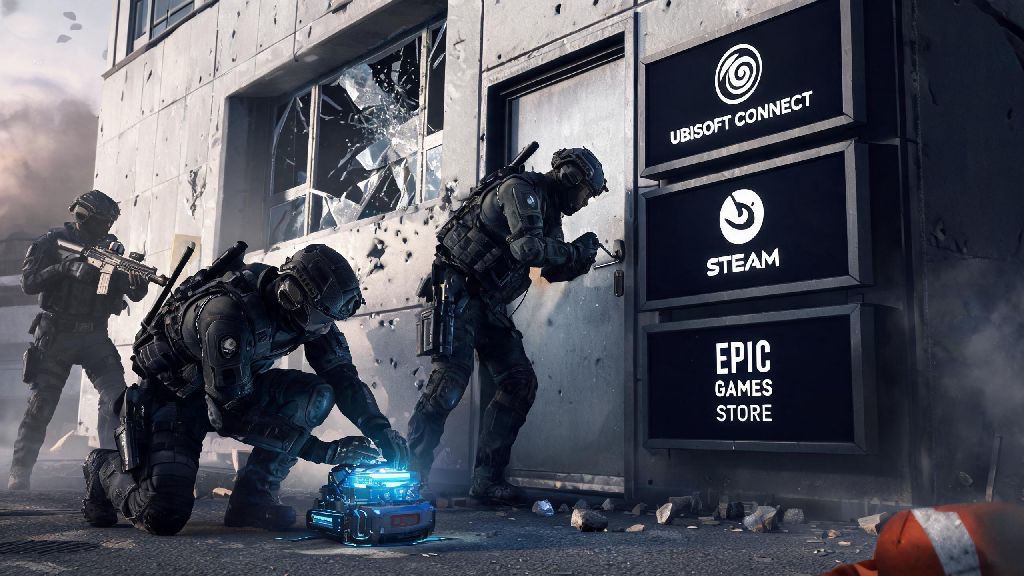
If you’re a long-time console Rainbow Six Siege player who just made the jump to PC, or you just prefer the feel of a controller over a mouse and keyboard for casual play, you’ve probably asked: can you play controller on PC rainbow six siege? I switched from PS5 to PC back in 2023, and I exclusively used a controller for my first three months of playing R6 on my new setup before I started mixing in mouse and keyboard for ranked. I’ve tested every part of the controller support on both Steam and Ubisoft Connect versions of the game, so I can walk you through exactly what works, what doesn’t, and how to get the best possible experience if you choose to use a controller on PC.
Can You Play Controller on PC Rainbow Six Siege? Official Support Details
The short answer is yes, Ubisoft offers full, native controller support for the PC version of Rainbow Six Siege, no third-party mods or workarounds required. It works with all major controller models, including Xbox Series X/S, Xbox One, PS4, PS5, and even Nintendo Switch Pro controllers, as long as you have them connected via Bluetooth or USB cable to your PC. One of the best parts of having official support is that you don’t have to mess with buggy third-party software that can cause input lag or random disconnections mid-match.
One common concern players have is whether using a controller on PC will get them banned, and the answer is no. Ubisoft explicitly allows controller input on PC, and you won’t face any account penalties for using one, even in ranked play. You can also switch between controller and mouse and keyboard mid-game without restarting, which is handy if you want to test both inputs in the same match.
Matchmaking is also flexible for controller users on PC. By default, you’ll be placed in the general PC matchmaking pool with mouse and keyboard players, but you can toggle on input-based matchmaking in your settings to be paired only with other controller users across PC and console. That’s a great option if you want more balanced matches without the pressure of going up against high-skill mouse and keyboard players.
Step-by-Step Controller Setup for R6 Siege on PC
Setting up your controller for R6 Siege on PC only takes a few minutes, regardless of which launcher you use. For Steam users, first open your Steam library, right-click on Rainbow Six Siege, select Properties, then navigate to the Controller tab. Enable Steam Input for the game, then select your controller type from the dropdown menu to confirm it’s recognized. If your controller isn’t showing up, try disconnecting and reconnecting it, or restarting Steam.
If you play through Ubisoft Connect, open the launcher settings, select the Controller tab, then toggle on “Enable controller support” for all games. You can calibrate your controller from this menu too, to make sure all sticks and buttons are registering correctly before you launch the game. I recommend running the calibration tool even if your controller works fine out of the box, as it can fix small drift issues you might not have noticed.
Once you’re in-game, head to the Controls tab in Options, then select the Controller preset that matches your device. You can use the default binds, but I highly recommend adjusting a few key settings first to get the best performance:
- Vertical and horizontal sensitivity: Start with 10 for both if you’re coming from console, then adjust 1 point up or down per match until it feels natural. Don’t copy pro player settings right away, as they often use much higher sensitivity than casual players are comfortable with.
- Dead zone: Set left stick dead zone to 5-8% to avoid unintended movement, right stick dead zone to 3-5% for precise aim adjustments. I left my dead zone at the default 15% when I first set up my controller, and I couldn’t make small aim adjustments to hit headshots on long angles until I lowered it.
- Aim assist strength: Leave this on default (100) for casual play, but drop to 70-80% if you’re practicing for ranked to reduce over-reliance on snap assistance. Aim assist is less effective against high-skill players who peek fast, so you’ll want to build consistent aim without it if you plan to climb ranks.
- Controller vibration: Turn this off for competitive play, as it can distract you from audio cues like enemy footsteps or breaching charges. You’ll be surprised how much more you can hear when you don’t have your controller buzzing every time you fire a gun.
Pros and Cons of Using Controller on PC for R6 Siege
Using a controller on PC for R6 Siege has some clear benefits, but it also has downsides that matter a lot if you play competitive ranked matches. Let’s break them down so you can decide if it’s the right choice for you.
The biggest plus for most players is comfort. If you’ve spent hundreds of hours playing R6 on console, you already have all the muscle memory for controller inputs, so you don’t have to relearn everything from scratch when you switch to PC. Controller is also far less taxing on your wrists during long 4+ hour play sessions, and it’s the only practical option if you play R6 on a PC connected to your living room TV from the couch. You also get access to the same aim assist functionality that console players have, which makes tracking moving targets and peeking around corners much easier for newer players.
But there are real downsides to consider too. The biggest one is that controller simply can’t match the speed and precision of a mouse for fast flicks and small aim adjustments. Once you get to Platinum rank or higher in ranked play, most mouse and keyboard players will be able to peek an angle and shoot you in the head before you can even adjust your aim to line up a shot. You also have far less customization options for binds on controller, even with high-end controllers with back paddles, compared to the hundreds of possible binds you can set up with a gaming keyboard and mouse.
For me, controller is my go-to for casual unranked matches and terrorist hunt, but I switch to mouse and keyboard whenever I play ranked. I get the comfort of controller for low-pressure games, and the precision of mouse and keyboard when I’m trying to climb the ranks. There’s no rule that says you have to stick to one input forever, either.
Tips to Improve Your Controller Gameplay on PC R6
If you decide to stick with controller for PC R6, there are a few simple tips that will help you perform way better, even against mouse and keyboard players. First, stick to one sensitivity setting for at least two weeks before you make any adjustments. I used to change my sensitivity every time I had a bad match, and it took me twice as long to build consistent muscle memory as a result. Once you pick a sensitivity that feels mostly right, give it time to sink in before you tweak it.
Second, spend 10 minutes playing hard difficulty terrorist hunt before every play session. The input response on PC is slightly faster than it is on console, so T-Hunt is a low-pressure way to get used to how your aim feels on PC before you jump into real matches. Focus on hitting headshots on moving terrorists to build your tracking skills.
Third, if you have a controller with back paddles, map your lean left and lean right commands to them. Most default controller binds force you to take your thumb off the right stick to lean, which makes it impossible to aim while you’re peeking an angle. Mapping lean to the back paddles lets you keep both thumbs on the sticks at all times, which is a massive advantage in 1v1 gunfights.
Finally, don’t listen to people who tell you controller is “worse” than mouse and keyboard. At the end of the day, R6 is a game, and the point is to have fun. If you play better and have more fun with a controller, that’s all that matters. I still regularly outperform mouse and keyboard players in casual lobbies with my controller, and I know multiple Platinum-ranked players who exclusively use controller on PC. You don’t have to switch to MKB to be good at the game.
At the end of the day, if you’ve been asking can you play controller on PC Rainbow Six Siege, the answer is a clear yes, with full support and plenty of options to tailor the experience to your playstyle. Whether you’re a casual player who just wants to relax with a controller after a long day, or a former console player who isn’t ready to make the jump to mouse and keyboard yet, there’s no wrong choice. Take the time to adjust your settings to fit your preferences, practice regularly, and don’t let anyone pressure you into switching inputs if you’re having fun. I still keep my PS5 controller right next to my mouse and keyboard for when I want to kick back and play casual matches with my console friends, and I wouldn’t have it any other way.