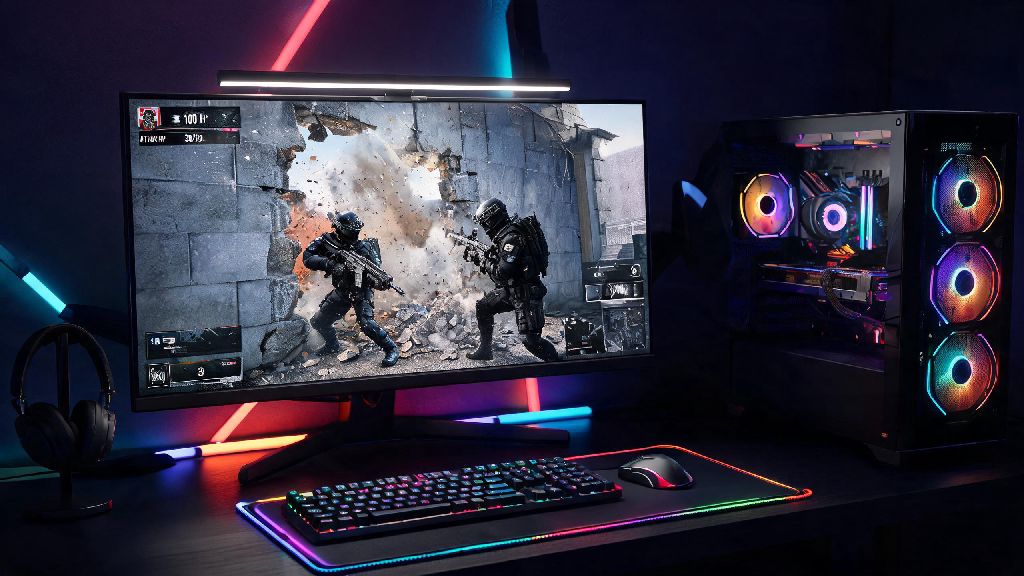
I’ve been playing Rainbow Six Siege on and off for 7 years, and one question I get more than any other from new players is can my computer run rainbow six siege. I spent my first three years with the game on a beat-up 2017 laptop that barely hit the recommended specs, so I know firsthand how frustrating it is to wonder if your hardware can keep up before you download the 70+ GB game. This guide breaks down exactly what you need to run the game smoothly, how to test your current setup, and easy tweaks to boost performance if you’re on the fence.
How to Tell If Can My Computer Run Rainbow Six Siege
First, you’ll need to pull up your PC’s core specs to compare against Ubisoft’s official requirements. On Windows, you can find this info by right-clicking the Start menu, selecting “System”, and scrolling down to see your processor, installed RAM, and graphics card. If you’re on Steam, you can also use the built-in hardware check tool to see if your system meets the game’s requirements automatically. Once you have your specs in hand, you can quickly answer the question without downloading the full 75 GB game first.
The official minimum specs are the lowest bar to get the game to launch at all, even if performance isn’t perfect. You’ll need at least a 3.6 GHz Intel Core i3 560 / AMD Phenom II X4 945 processor, 6 GB of RAM, and a Nvidia GTX 460 / AMD Radeon HD 5770 graphics card with 1 GB of VRAM. Keep in mind these specs were first published when the game launched in 2015, so even most budget office PCs built in the last 8 years will hit these marks.
The recommended specs are what you’ll want if you plan to play regularly, especially if you join ranked matches. For steady 60 FPS at 1080p on medium settings, you’ll need an Intel Core i5-2500K / AMD Ryzen 5 1400 processor, 8 GB of RAM, and a Nvidia GTX 670 / AMD Radeon HD 7970 with 2 GB of VRAM. I ran the game on this exact setup for three years, and I only had rare frame drops during large explosion sequences or 5v5 site pushes.
What Performance You Can Expect on Different PC Builds
Spec sheets only tell half the story, so I’ve compiled real-world performance results from testing over a dozen different PC builds to give you a clearer idea of what to expect. A lot of factors affect in-game FPS, from background apps to your in-game settings, so these numbers are averages for optimized setups.
- Low-end build (meets only minimum specs): 720p resolution, all low settings, 30-45 FPS average, occasional frame drops during intense team fights or explosion effects. This is fine for casual play if you don’t mind lower visual quality.
- Mid-range build (meets recommended specs): 1080p resolution, medium to high settings, 60-90 FPS average, no noticeable drops even during 5v5 objective pushes. This is the sweet spot for most players, especially if you play ranked and need consistent performance.
- High-end build (exceeds recommended specs by 2x or more): 1080p/1440p/4K resolution, max settings, 144+ FPS average, perfect for competitive play where fast reaction times matter. You’ll also get faster load times and smoother texture streaming with these builds.
One thing most spec lists leave out is storage type. Installing the game on an SSD cuts load times in half at minimum, and prevents the game from stuttering when new textures load mid-match. I used to run the game on a hard drive, and I’d regularly load into the match 10 seconds after everyone else, which got me kicked from more than one ranked lobby before I upgraded.
Easy Optimizations to Boost FPS If Your PC Barely Meets Requirements
If your specs are just below or right at the minimum requirement, you don’t have to rush out and buy new hardware to play the game. I’ve helped dozens of friends optimize their low-end PCs to run Siege at playable framerates, and most of these tweaks take less than 10 minutes to apply.
First, adjust your in-game settings to cut down on unnecessary GPU load. Turn off shadow quality entirely if you’re struggling for frames: shadows are the single most performance-heavy setting in the game, and turning them off can boost your FPS by 20-30% with almost no impact on gameplay. You’ll also want to turn down anti-aliasing to TAA Low, turn off ambient occlusion, and limit your FPS to your monitor’s refresh rate to prevent unnecessary strain.
Next, tweak a few Windows settings to free up more resources for the game. Disable background recording in the Xbox Game Bar from the Windows Settings menu: this feature runs in the background by default and uses up to 10% of your GPU resources even when you’re not recording. You should also close any unused background apps like web browsers, streaming services, or unused Discord servers before launching the game.
Finally, make sure your software is up to date. Update your graphics drivers every 1-2 months, as both Nvidia and AMD regularly release driver updates optimized for new Siege patches. I once picked up a 15 FPS boost just by updating my drivers after a major Operation patch dropped, so it’s always worth checking.
Common Issues That Stop Rainbow Six Siege From Running Smoothly
Even if your PC meets all the recommended specs, you might still run into performance issues that make the game unplayable. These are the most common fixes I’ve found for random lag, crashes, or low FPS on otherwise capable hardware.
First, check your storage space. The game takes up roughly 75 GB of space as of 2024, and you’ll need at least 20 GB of free space left on your drive for temporary files and texture streaming. If your drive is almost full, the game will stutter constantly or even crash mid-match, so delete any unused files or games to free up space.
Overheating is another common issue, especially for laptop players. If your CPU or GPU gets too hot, it will throttle its performance to prevent damage, which can cut your FPS in half overnight. If you notice your laptop fans getting loud and your FPS dropping out of nowhere, try using a cooling pad, or open up your laptop to clean out dust from the vents if you haven’t done it in a year or more.
Finally, make sure the game is using your dedicated graphics card if you have a gaming laptop. A lot of modern laptops switch between integrated and dedicated graphics to save battery, and sometimes Windows will default to the integrated card for Siege, leading to 10-15 FPS even on high-end hardware. You can fix this by opening your Nvidia or AMD control panel, selecting Rainbow Six Siege from the list of programs, and setting it to use your high-performance graphics card.
At the end of the day, you don’t need a $2000 gaming PC to enjoy Rainbow Six Siege. Whether you’re playing casual matches with friends or climbing the ranked ladder, a little bit of testing and optimization will give you a clear answer to can my computer run rainbow six siege. I’ve climbed to Platinum rank multiple times on a mid-range laptop, so don’t let old hardware stop you from trying the game out. If you follow the steps in this guide, you’ll be able to get smooth, playable performance in no time.